


Links into Play Store app:
ChatGPT by OpenAI can be accessed for free while there is also a paid version, ChatGPT Plus, with priority access and faster response time.
We can use ChatGPT on an Android device or iOS device for free.
All we need to do is to access the OpenAI website( https://chat.openai.com ) on a web browser such as Chrome, Edge, Firefox, or any other web browser on our smart devices and click on the "Try ChatGPT" banner on the top of the web page.
Login with your credential if you already have an account on OpenAI. We can also create an account on ChatGPT using a Google or Microsoft account.
Now we can input our query in the chat box and ChatGPT will come up with a response. 😎
Q1: Is there a ChatGPT app for iOS?
No, there is no official ChatGPT app for iPhones and iPads till now.
Q2: Is there a ChatGPT app for Android?
No, there is no official ChatGPT app for Android devices till now.
10 Redeem Codes for Google Play Store: full-free downloading a paid utility app for Android.
Get it as soon as possible if you need. 😀😀😀
Please remember to upvote this Reddit post. 😃😃😃
* * The redeem codes are valid untill 02/21 11:00pm GMT.
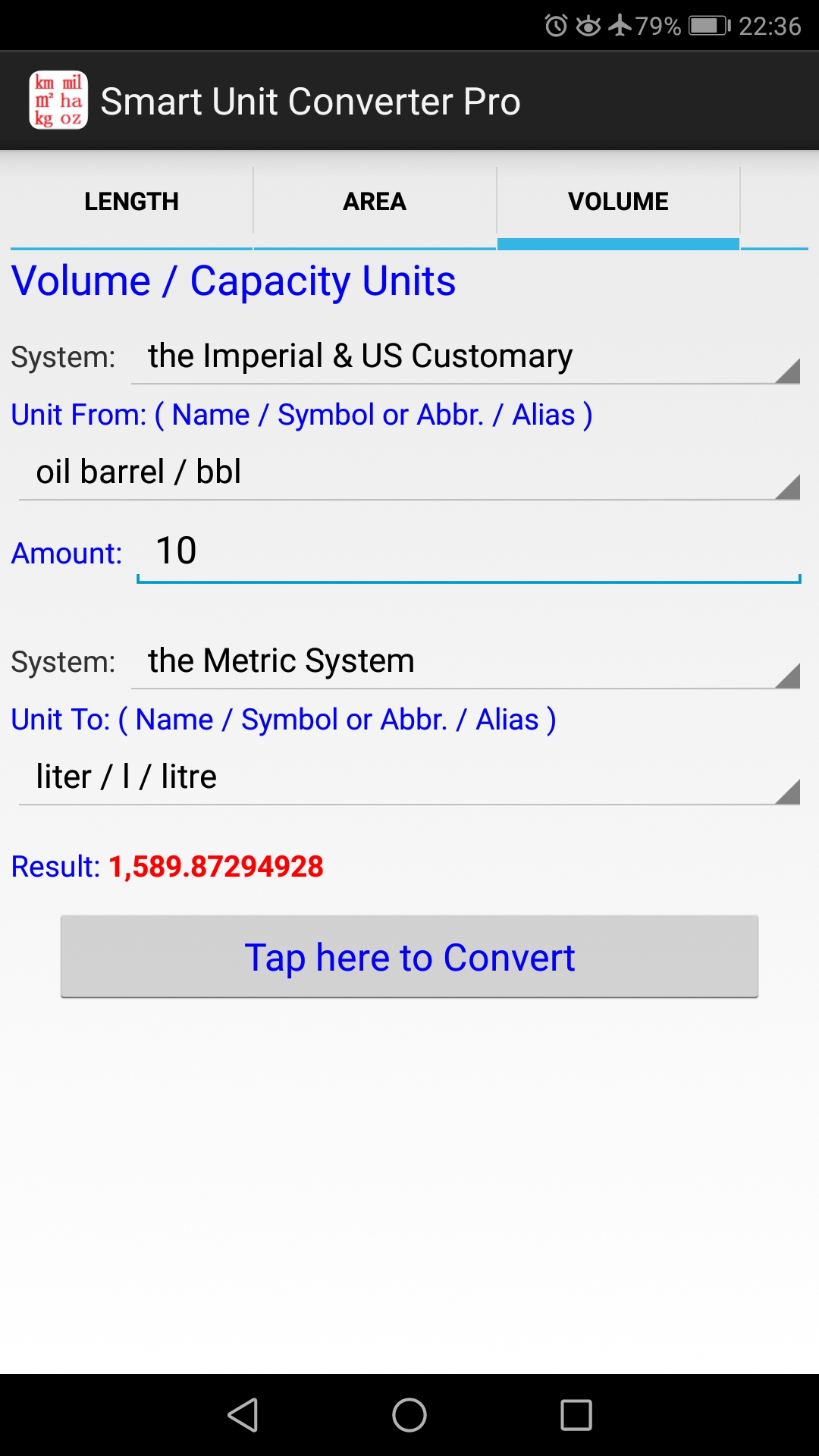
The minimal utility app on Google Play -
https://play.google.com/store/apps/details?id=xadave.SmartUnitConverterPro_Google
6SYTAAGTJ0LYH9HMRDDD63U
YCQGLLFL6T4WV1BND8VCQ7C
L4N7686XTQJYZRYEMCVYRDC
XYCKCQUJXNLD3H2KEC0ANSG
G8NFE0U85S3ZJA9EV5M98YC
ECZWKBL20105MA2U1SYDWU4
HGJS8X0JW99J3VGLTB7CU26
KGLNC2W6JLRAQMH72Y0NPSZ
RWXKHGWNB00XYCF86HU9VMP
5GMLV6WH8HNMZ1UEUSBCAXC
I created an AVD (Android Virtual Device) based on API Level 28 (Android 9.0). But when I tried to take a photo, the stock Camera app said "Insert an SD card before using the camera". Check the screentshot as below. So, I failed to take any photo at all.

But in fact, in the AVD Advanced Settings, already there is a 'Studio-managed SD card' set up for this AVD.

The Android Emulator I used -

The System Image I used for this AVD -


As we know, an Android Virtual Device (AVD) is a configuration that defines the characteristics of an Android phone, tablet, Wear OS, Android TV, or Automotive OS device that you want to simulate in the Android Emulator.
The AVD Manager is an interface you can launch from Android Studio that helps you create and manage AVDs.
So, how to create an AVD? And then how to run an emulator that uses the AVD?
1. Open the AVD Manager by clicking 'Tools > AVD Manager' from the Android Studio.
2. Click 'Create Virtual Device', at the bottom of the AVD Manager dialog.
The 'Select Hardware' page then appears.

3. Notice that only some hardware profiles are indicated to include Play Store.
Pay attention to those hardware profiles labeled with the Google Play logo in the Play Store column. This indicates that these profiles are fully CTS compliant and may use system images that include the Play Store app.
4. Select a hardware profile, and then click 'Next'.
Here we select 'Phone' - 'Pixel 2, 5.0", 1080x1920, 420dpi'.
5. The 'System Image' page now appears.

A system image labeled with Google APIs includes access to Google Play services. A system image labeled with Google Play includes the Google Play Store app and access to Google Play services, including a Google Play tab in the Extended controls dialog that provides a convenient button for updating Google Play services on the device.
Select the system image for a particular API level, and then click 'Next'.
Here we select the system image 'Q, API Level = 29, ABI = x86, Target = Android 10.0 (Google Play)'.
6. The 'Verify Configuration' page appears.
Here we enter the AVD Name: Pixel 2 API 29(Android 10).
7. In the 'Your Virtual Devices' page, now we can find the AVD that we just created.

To run an emulator that uses the AVD, from the 'Your Virtual Devices' page, just double-click that AVD, or click Launch button for it.
Several minutes later, an emulator that you want will be up and running. 😎

A lightweight & pure enough app for Android on Google Play Store -
Link to Play Store web: https://play.google.com/store/apps/details?id=xadave.SmartUnitConverterFree_Google
Link into Play Store app: market://details?id=xadave.SmartUnitConverterFree_Google
Link to Play Store web: https://play.google.com/store/apps/details?id=xadave.SmartUnitConverterPro_Google
Link into Play Store app: market://details?id=xadave.SmartUnitConverterPro_Google
A minimalist utility app for Android which is available on Google Play ---


Link to Play Store web: https://play.google.com/store/apps/details?id=xadave.SmartUnitConverterFree_Google
Link into Play Store app: market://details?id=xadave.SmartUnitConverterFree_Google
Full-featured edition -
Link to Play Store web: https://play.google.com/store/apps/details?id=xadave.SmartUnitConverterPro_Google
Link into Play Store app: market://details?id=xadave.SmartUnitConverterPro_Google



Dr.Fone is a complete mobile device solution for iOS and Android devices, it solves problems in any scenario: from system breakdowns and data loss, to phone transfers and much more!
WhatsApp Transfer -
Transfer WhatsApp messages between two Android or iOS devices. Backup and restore WhatsApp, Viber, WeChat, LINE, etc.
Phone Transfer -
Migrate all your data including contacts, messages, photos, call history, etc. from one phone to another in just one click.
Phone Backup -
Backup iOS/Android devices to a computer(Windows or mac OS). Restore local, iTunes, and iCloud backups on any devices.
The official website of this great utility:
https://drfone.wondershare.com/
You can try the utility for free. 😀

