Showing posts with label Play Store. Show all posts

Friday, August 7, 2026

Such a lightweight app: can convert 'ft + in' to m as well as 'lb + oz' to kg, and vice versa.

 The pure utility app which is available on Google Play can convert feet (ft) and  inches (in) together to meters (m), and vice versa. 


ft + in to m and vice versa


The clean app can also convert pounds (lb) and ounces (oz) together to kilograms (kg), and vice versa.


lb + oz to kg and vice versa


The full-featured version - Smart Unit Converter Pro

Thursday, January 18, 2024

Download size only 0.11 MB --- a PURE app for Android on Google Play Store

Download size is only 0.11 MB --- a minimalist app for Android which is available on Google Play Store


1. Lightweight enough( download size < 0.12 MB ),

2. Pure enough( not only Ad-Free, but almost NO 'Application Permissions' required at all ),

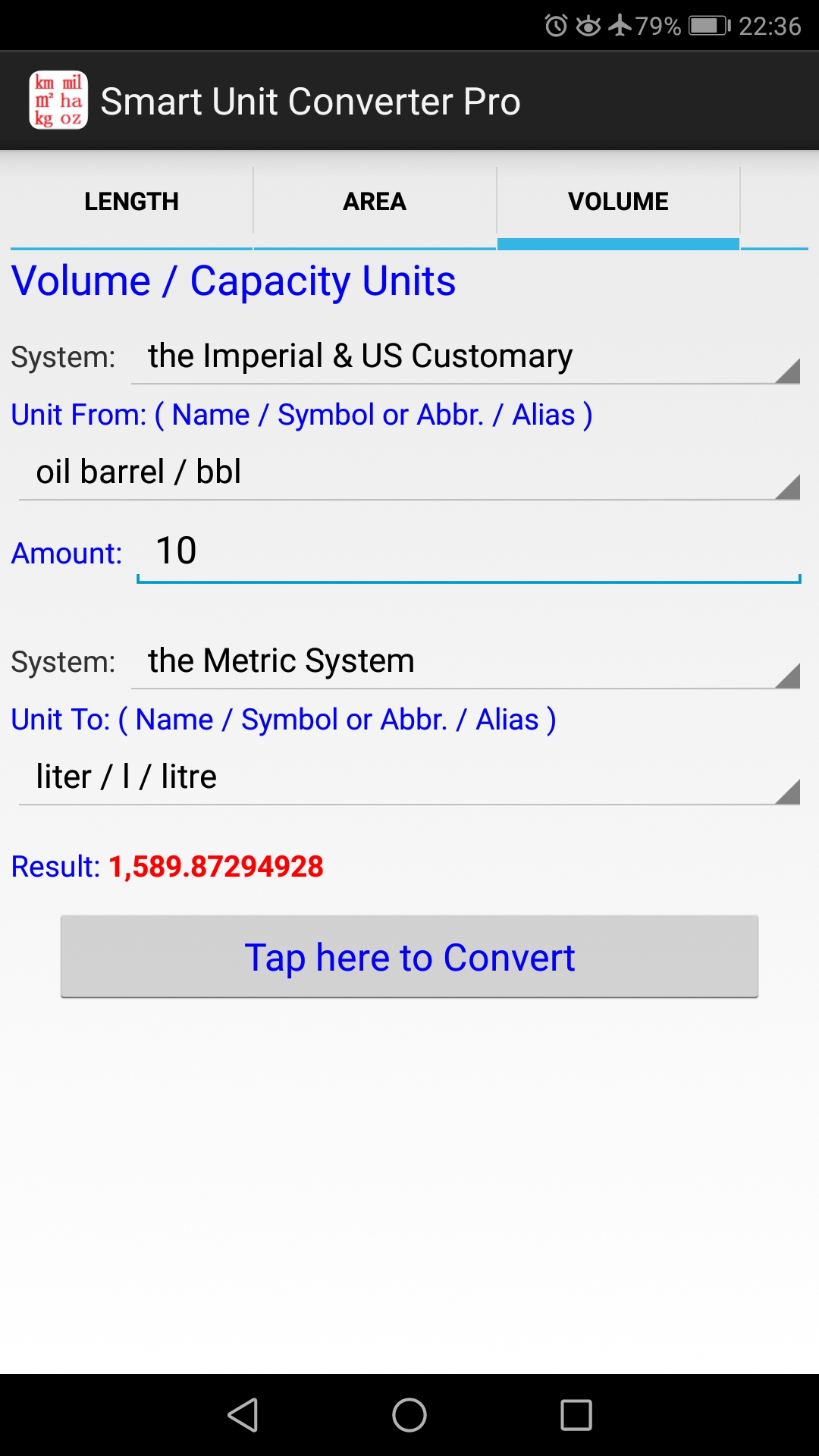
3. High Precision ( Every conversion result is accurate enough. Check the app screenshots on Google Play, please. )


Links to Google Play web: 

https://play.google.com/store/apps/details?id=xadave.SmartUnitConverterFree_Google

https://play.google.com/store/apps/details?id=xadave.SmartUnitConverterPro_Google


Links into Play Store app: 

market://details?id=xadave.SmartUnitConverterFree_Google

market://details?id=xadave.SmartUnitConverterPro_Google


On Google Play web or Play Store app, search for the keyword 'SmartUnitConverterPro_Google' , 'SmartUnitConverterFree_Google', or 'SmartUnitConverterPure' , you can quickly find these pure apps, Smart Unit Converter Pro or Smart Unit Converter Pure/Free. 😀


Short URLs for these pure apps on Google Play -

https://goo.gl/ws42fN

https://goo.gl/vf1rxW


Thursday, February 9, 2023

10 Redeem Codes for Play Store: Full-free Downloading a paid & minimal app for Android. Get it ASAP. :-) :-) :-)

10 Redeem Codes for Google Play Store:  full-free downloading a paid utility app for Android. 


Get it as soon as possible if you need. 😀😀😀

https://www.reddit.com/r/androidapps/comments/10vrf7h/dev_hey_i_made_several_promo_codes_for_an_utility/


Please remember to upvote this Reddit post. 😃😃😃

* * The redeem codes are valid untill 02/21 11:00pm GMT.


The minimal utility app on Google Play -

https://play.google.com/store/apps/details?id=xadave.SmartUnitConverterPro_Google


6SYTAAGTJ0LYH9HMRDDD63U

YCQGLLFL6T4WV1BND8VCQ7C


L4N7686XTQJYZRYEMCVYRDC

XYCKCQUJXNLD3H2KEC0ANSG


G8NFE0U85S3ZJA9EV5M98YC

ECZWKBL20105MA2U1SYDWU4


HGJS8X0JW99J3VGLTB7CU26

KGLNC2W6JLRAQMH72Y0NPSZ


RWXKHGWNB00XYCF86HU9VMP

5GMLV6WH8HNMZ1UEUSBCAXC

Saturday, January 8, 2022

How to create an Android Virtual Device (AVD) with ease?


As we know, an Android Virtual Device (AVD) is a configuration that defines the characteristics of an Android phone, tablet, Wear OS, Android TV, or Automotive OS device that you want to simulate in the Android Emulator


The AVD Manager is an interface you can launch from Android Studio that helps you create and manage AVDs.


So, how to create an AVD? And then how to run an emulator that uses the AVD?


1. Open the AVD Manager by clicking 'Tools > AVD Manager' from the Android Studio.


2. Click 'Create Virtual Device', at the bottom of the AVD Manager dialog.

    The 'Select Hardware' page then appears.


3. Notice that only some hardware profiles are indicated to include Play Store

    Pay attention to those hardware profiles labeled with the Google Play logo in the Play Store column. This indicates that these profiles are fully CTS compliant and may use system images that include the Play Store app.


4. Select a hardware profile, and then click 'Next'.

    Here we select 'Phone' - 'Pixel 2, 5.0", 1080x1920, 420dpi'.


5. The 'System Image' page now appears.


A system image labeled with Google APIs includes access to Google Play services. A system image labeled with Google Play includes the Google Play Store app and access to Google Play services, including a Google Play tab in the Extended controls dialog that provides a convenient button for updating Google Play services on the device.


Select the system image for a particular API level, and then click 'Next'.


Here we select the system image 'Q, API Level = 29, ABI = x86, Target = Android 10.0 (Google Play)'.


6. The 'Verify Configuration' page appears.

    Here we enter the AVD Name: Pixel 2 API 29(Android 10).


7. In the 'Your Virtual Devices' page, now we can find the AVD that we just created.

To run an emulator that uses the AVD, from the 'Your Virtual Devices' page, just double-click that AVD, or click Launch button for it.


Several minutes later, an emulator that you want will be up and running. 😎


Reference to the official Android Developer Website - 

Saturday, November 27, 2021

A lightweight & pure enough app for Android on Google Play

A minimalist utility app for Android which is available on Google Play ---


1. Lightweight enough( download size < 0.12 MB ),
2. Pure enough( not only Ad-Free, but almost NO 'Permissions' required ),
3. High Precision( check the app screenshots as below ).

----------------------------------------------------------------------------------------------

This minimalist APP respects your privacydevices, and your time.


Full-free edition:         Smart Unit Converter Free
Full-featured edition:  Smart Unit Converter Pro

----------------------------------------------------------------------------------------------

Key Features - 

1. Accurate & High Precision in any unit conversion results.

   This is a distinguished feature of the utility apps. Check the app screenshots as below.

   It is just for those who need Maximum Precision in basic unit conversions.


2. Pure and Ad-free.

   Not only is the utility app Ad-free, but even almost NOT any "Application Permissions" is required at all. As a result, the app is safe and reliable enough for end users.

   This pure app implements any unit conversions completely in Android devices offline, without network access. That means you can perform unit conversions with the utility app anywhere even if your device has no internet connection.

   Enjoy a faster, cleaner experience with this Android app. :-)


3. Lightweight enough.

   The utility app is so lightweight that the download size is less than 0.12 MB ! 

   Very few unit converter apps are more lightweight than this one.


----------------------------------------------------------------------------------------------

The links to Google Play Store
---------------------------------------------------------------------------------------------

Full-free edition -  

Link to Play Store web: https://play.google.com/store/apps/details?id=xadave.SmartUnitConverterFree_Google

Link into Play Store app: market://details?id=xadave.SmartUnitConverterFree_Google


Full-featured edition - 

Link to Play Store web: https://play.google.com/store/apps/details?id=xadave.SmartUnitConverterPro_Google

Link into Play Store app: market://details?id=xadave.SmartUnitConverterPro_Google


On Google Play web or Play Store app, search for the keywords 'SmartUnitConverterPro_Google' , or 'SmartUnitConverterFree_Google', you can quickly find these pure apps, Smart Unit Converter Pro or Smart Unit Converter Pure/Free. 😀

It will be appreciated if you would like to leave a 5-star rating for these 2 minimalist apps for Android. Thank you very much in advance. ðŸ˜€


* The utility app just focuses on the basic unit categories. It is expected to help those who need exact conversions between the Imperial or US customary system and the Metric system for those basic units of measurement.


----------------------------------------------------------------------------------------------

More App Screenshots - 


----------------------------------------------------------------------------------------------

On Google Play web or Play Store app, search for the keyword of 'SmartUnitConverterFree' , or 'smart unit converter pure' ,  you can quickly find these pure apps, Smart Unit Converter Pro or Smart Unit Converter Pure/Free. 😀

======================================================